Running a Python script on your phone on a schedule
There's no doubt that data is the foundation of any data analysis, and for us ordinary folks, the natural way to get large amounts of data is via web scraping. For me personally, the most natural way to write a scraper is in Python—just a handful of lines of code and you've got a working scraper. Nice and clean. (See: A record of scraping Taobao/Tmall review data)
Where should the scraper live?
The next question is: where do you actually run this scraper? To collect daily-updated data, you typically need to run the scraper once a day, ideally on a fixed schedule. Leaving it running on your own computer around the clock isn't really practical, since your computer eventually gets shut down. Some readers might think of putting it on a cloud server—that works, but it costs extra. Inspired by this master hacker, I started thinking about running it on my router instead. Some higher-end routers support external USB drives and can be flashed with OpenWrt (a Linux-kernel-based router OS that lets you install Python much like on a regular Linux box). This idea was quite appealing to me, but I'm not very familiar with compiling things in a Linux environment, especially on a router. Plus, routers are usually pretty low-spec—typically just 16MB of flash and 64MB of RAM—so without a lot of patience, this route would be pretty painful.
I also thought about buying a Raspberry Pi for this. The Raspberry Pi 2B now comes with 1GB of RAM, making it essentially a fully-featured mini PC, and it's not expensive—definitely worth playing with. But that means extra spending, and buying a whole Raspberry Pi just to run a scraper on it feels like overkill. After mulling over various options, an idea suddenly hit me yesterday—besides our laptops, the smart device we use most often is our phone, so why not just run it there? Our phones are basically connected to wifi all day anyway, and during the hours we're asleep at night, the phone is mostly idle. Running the scraper on the phone seems like the perfect fit!
A difficult exploration
Once I had the idea, I got straight to work. Naturally, the whole exploration process was pretty painful.
First was the Python environment on the phone. This part was easy, since QPython is available—a feature-rich Python environment for Android that you can just install and use. It's not too different from Python on a PC, except that you can't install many third-party libraries. Since the scraper needs to handle Chinese text, I went with QPython3. I heard SL4A and PY4A are also options, but they don't seem to have been updated in ages and are more complicated to set up, so I didn't bother trying them.
Next was writing the scraper. When writing it, you need to stick to the libraries bundled with QPython3. I usually use the requests library for scraping, which works the same across 2.x and 3.x, but QPython3 doesn't include it. Most online tutorials teach you to use urllib2, but that library only exists in Python 2.x—in 3.x it's been folded into urllib, so you need to switch to urllib.request instead. More importantly though, QPython3 does come with the re library for regular expressions, which is absolutely essential for writing scrapers! It also comes with the csv library, which is handy for saving results. I won't give the full scraper code here—I'll leave that for readers to work out themselves.
Then came the hardest part: how do you get the scraper to run on a schedule on your phone?
Yesterday and today, I looked through a lot of material, tried many approaches, and failed more times than I can count. Eventually I worked out a method that actually works.
Super Terminal settings, step one, is about getting it to run. Install "Super Terminal" (I don't know if there are other similar apps that can do this)—it's an Android terminal emulator that gives your Android device a Linux-like terminal. Most importantly, under "Settings" you can choose to launch it as root, and you can also customize the startup command line for the terminal. In the terminal startup command field (the "Command Line" option shown in the image on the right), enter:
/data/data/com.hipipal.qpy3/files/bin/qpython.sh /sdcard/com.hipipal.qpyplus/scripts3/582.py
The part in red is the scraper script you've written. Once you've filled this in, close Super Terminal and reopen it. If you find that the specified scraper script runs automatically as soon as the terminal opens, then it worked.
Step two is scheduling. You can install an app like "Timing Expert" (there are many similar apps—pick any one, as long as it supports scheduling a specific app to launch). Set up a scheduled task in it to launch Super Terminal at a fixed time.
Summary
Here's a screenshot of it running:
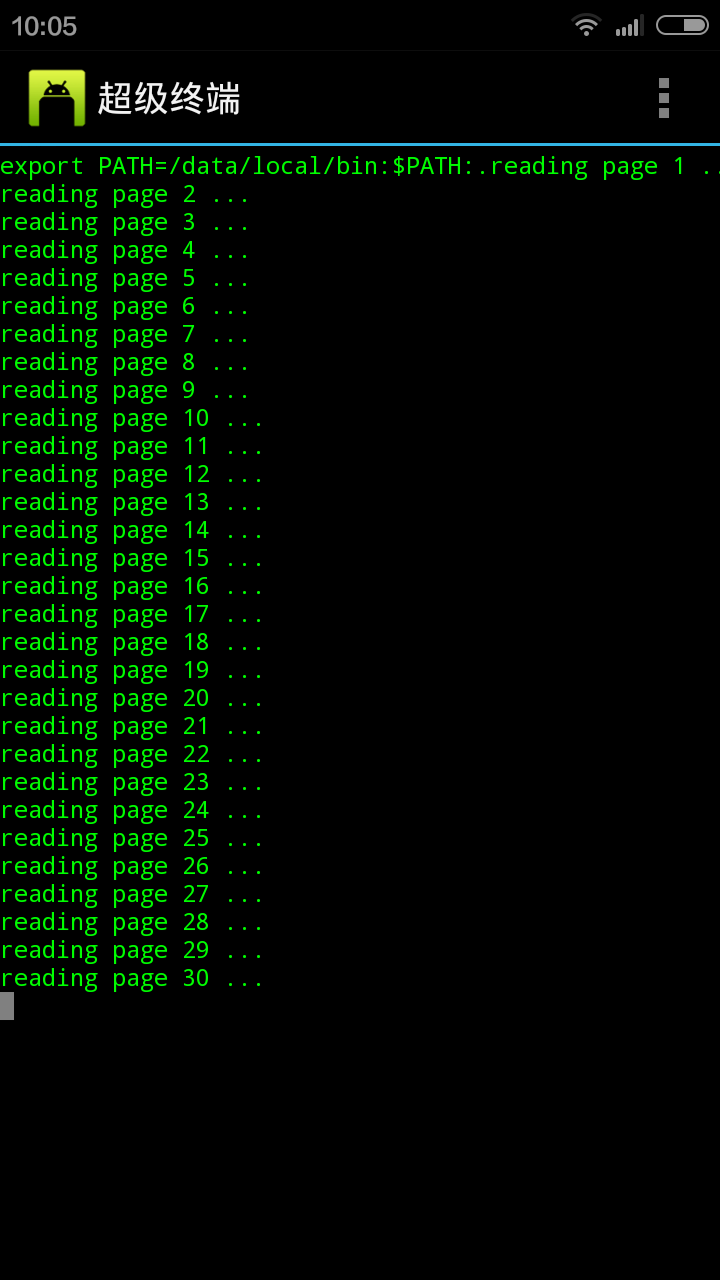 Phone scraper interface
And with that, we've completed writing a Python scraper on Android and getting it to run automatically on a schedule. In short, we use QPython to run the Python script, and then use an app like Timing Expert to launch that app on a schedule. How do we get QPython to run our specific script? By specifying the startup command via Super Terminal—this effectively turns Super Terminal into a dedicated app just for running this scraper (admittedly, this feels a bit unfair to Super Terminal, using such a powerful tool for such a small job, but I couldn't come up with a better way).
Translated automatically with claude-sonnet-5; all equations are reproduced verbatim from the source. Copyright remains with the original author.